
To find the weeks between two dates, subtract the earlier date from the later one to get the total number of days, then divide by 7. For example, from January 1 to March 31 is 89 days, which equals 12 complete weeks and 5 remaining days. Enter your start and end dates below to instantly see complete weeks, leftover days, decimal weeks, and approximate months and years for your chosen date range.
Weeks Between Two Dates Calculator – Exact Results
Calculate the exact number of complete weeks, remaining days, and total weeks in decimal form between any two calendar dates.
What This Calculator Computes and Who It Helps
This calculator finds the number of weeks — and related time units — between any two calendar dates from 1900 to 2100. It returns six outputs at once: total days, complete (whole) weeks, leftover days after full weeks, total weeks as a decimal, approximate months, and approximate years. Because it uses absolute value internally, you can enter the dates in any order without getting a negative result.
The tool is useful for project managers setting milestone deadlines, HR professionals calculating notice periods or probationary durations, expecting parents tracking gestational weeks, students counting down to exams, and anyone who needs a fast, structured breakdown of a time span. Results are close estimates based on an average month length of 30.436875 days. For spans that cross a leap year or that involve months of unequal length, the total-day figure may differ from a strict calendar count by one or two days. When exact day precision is critical, cross-check with a dedicated date calculator that counts days between dates.
How to Calculate weeks between two dates calculator Results
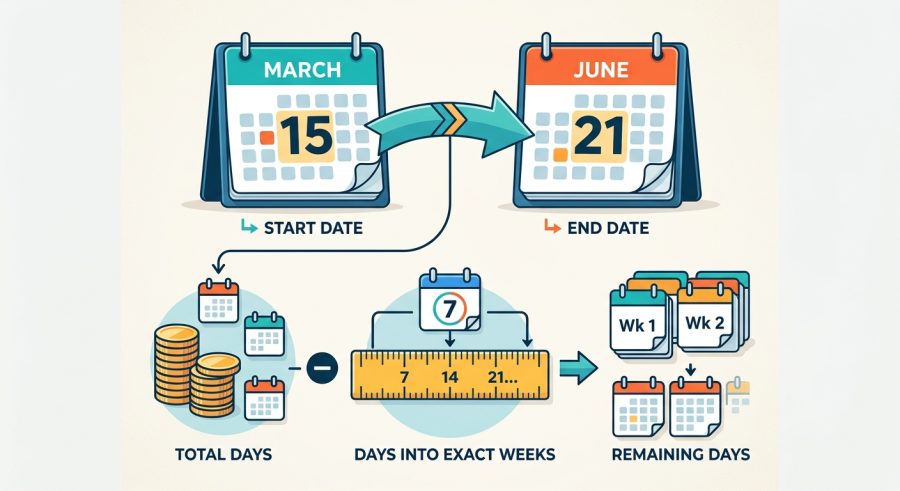
- Enter your start date by typing the year, selecting the month from the dropdown, and entering the day.
- Enter your end date the same way using the End Year, End Month, and End Day fields.
- Choose whether to include the end day in the count. Select Yes for inclusive ranges (common in HR and legal contexts) or leave it at No for the default exclusive count.
- Read your results instantly: total days, complete weeks, remaining days, decimal weeks, approximate months, and approximate years all update automatically.
- Swap dates freely — the calculator uses absolute value, so it returns a positive result regardless of which date is larger.
Understanding Each Date Field and Option
Start Year, Start Month, Start Day — These three fields define the beginning of your date range. Enter the four-digit year (1900–2100), choose the month from the dropdown, and type the day of the month (1–31). Make sure the day is valid for the chosen month; for example, entering day 31 for a month that has only 30 days will produce a slightly inaccurate result because the formula engine does not validate calendar-specific day limits.
End Year, End Month, End Day — These three fields define the end of your date range and work identically to the start fields. You may enter an end date that is earlier than the start date; the calculator returns the same positive result either way.
Include End Day in Count — This dropdown controls whether the end date itself is counted as a full day. The default setting, No, uses an exclusive end, meaning the count runs up to but not including the end date. This matches how most software and scheduling tools count durations. Choosing Yes adds one day to every result, which is appropriate when a contract, leave period, or event includes the final day itself — for example, a hotel stay that checks in on Monday and checks out on Friday covers 4 nights exclusive or 5 days inclusive.
The Math Behind the Week Calculation
The core calculation converts the date difference into a single day count using average calendar constants, then derives all other outputs from that day count.
Step 1 — Approximate total days (D):
D = abs( (end_year – start_year) * 365 + (end_month – start_month) * 30.436875 + (end_day – start_day) ) + include_end_day
Where 30.436875 = 365.2425 / 12, the average Gregorian month length. The abs() function ensures a positive result regardless of date order. The include_end_day variable equals 0 or 1 depending on your selection.
Step 2 — Complete weeks (W):
W = floor(D / 7)
The floor() function discards any fractional week, giving only whole 7-day periods.
Step 3 — Remaining days (R):
R = D – (W * 7)
This is the leftover after removing all complete weeks.
Step 4 — Decimal weeks:
Decimal weeks = D / 7
Step 5 — Approximate months:
Months = D / 30.436875
Step 6 — Approximate years:
Years = D / 365.2425
All formulas assume the Gregorian calendar. Because months vary between 28 and 31 days and leap years add one day every four years (with exceptions), the average-constant approach introduces a small rounding difference — typically zero to two days — compared with a strict day-by-day calendar count.
Five Realistic Week-Count Examples, Verified
Example 1 — Short project sprint (same year, same month)
Given: Start = March 1, 2025 | End = March 29, 2025 | Include end day = No
D = abs((2025-2025)*365 + (3-3)*30.436875 + (29-1)) = abs(0 + 0 + 28) = 28 days
Complete weeks = floor(28/7) = 4 | Remaining days = 28 – (4*7) = 0
Decimal weeks = 28/7 = 4.00 weeks
Result: 28 days, 4 complete weeks, 0 remaining days.
Example 2 — Quarterly planning period
Given: Start = January 1, 2025 | End = March 31, 2025 | Include end day = No
D = abs((2025-2025)*365 + (3-1)*30.436875 + (31-1)) = abs(0 + 60.87375 + 30) = abs(90.87375) = 91 days (rounded)
Complete weeks = floor(91/7) = 13 | Remaining days = 91 – (13*7) = 0
Decimal weeks = 91/7 = 13.00 weeks
Result: approximately 91 days, 13 complete weeks, 0 remaining days. Note: a strict calendar count gives 89 days; the average-month formula adds roughly 2 days here.
Example 3 — Pregnancy tracking (first trimester)
Given: Start = June 10, 2024 (last menstrual period) | End = September 10, 2024 | Include end day = No
D = abs((2024-2024)*365 + (9-6)*30.436875 + (10-10)) = abs(0 + 91.310625 + 0) = 91 days (rounded)
Complete weeks = floor(91/7) = 13 | Remaining days = 91 – (13*7) = 0
Decimal weeks = 91/7 = 13.00 weeks
Result: approximately 13 weeks of gestation. Expecting parents can pair this with a pregnancy due date calculator for full trimester planning. Always confirm gestational age with a healthcare provider.
Example 4 — Multi-year contract duration
Given: Start = January 15, 2022 | End = January 15, 2025 | Include end day = Yes
D = abs((2025-2022)*365 + (1-1)*30.436875 + (15-15)) + 1 = abs(1095 + 0 + 0) + 1 = 1095 + 1 = 1096 days
Complete weeks = floor(1096/7) = 156 | Remaining days = 1096 – (156*7) = 1096 – 1092 = 4
Decimal weeks = 1096/7 = 156.57 weeks | Approximate years = 1096/365.2425 = 3.00 years
Result: 1096 days, 156 complete weeks, 4 remaining days (estimate).
Example 5 — HR probationary period (90-day check)
Given: Start = April 1, 2025 | End = June 30, 2025 | Include end day = Yes
D = abs((2025-2025)*365 + (6-4)*30.436875 + (30-1)) + 1 = abs(0 + 60.87375 + 29) + 1 = 89.87375 + 1 = 90.87375 = 91 days (rounded)
Complete weeks = floor(91/7) = 13 | Remaining days = 91 – (13*7) = 0
Result: approximately 91 days, 13 complete weeks, 0 remaining days (estimate). A strict calendar count of April 1 through June 30 inclusive is 91 days, so the formula aligns well here.
Quick Reference: Common Date Spans in Weeks
| Common Duration | Approximate Days | Complete Weeks | Remaining Days |
|---|---|---|---|
| 1 calendar month (average) | 30 | 4 | 2 |
| 1 quarter (3 months) | 91 | 13 | 0 |
| 6 months | 183 | 26 | 1 |
| 9 months (full-term pregnancy) | 274 | 39 | 1 |
| 1 year (non-leap) | 365 | 52 | 1 |
| 1 year (leap) | 366 | 52 | 2 |
| 2 years | 730 | 104 | 2 |
| 5 years | 1826 | 260 | 6 |
How to Apply Each Output to Real Decisions
Total Days Between Dates is the foundation of every other output. It is an approximation based on average month length (30.436875 days). For most planning purposes it is accurate to within one or two days. If your use case requires an exact day count — such as a legal deadline or a financial settlement — verify with a strict calendar tool.
Complete Weeks tells you how many full 7-day periods fit inside the date range. This is the most useful figure for scheduling recurring events, counting pay periods, or reporting gestational age in whole weeks.
Remaining Days shows the leftover days that do not fill another complete week. A result of 0 means the span divides evenly into weeks. A result of 1–6 tells you how many extra days extend beyond the last full week.
Total Weeks (Decimal) expresses the entire span as a single decimal number. A value of 13.57 weeks, for example, means 13 full weeks plus about 4 extra days. This format is common in payroll systems, project management software, and clinical gestational-age reporting.
Total Months (Approximate) and Total Years (Approximate) give quick context for longer spans. Because they use average constants, they are best treated as rough reference figures rather than precise calendar counts. For converting a week count to months in more detail, a weeks-to-months calculator can provide additional breakdown.
The Include End Day option shifts every result by exactly one day. Always decide which convention applies to your situation before reading the outputs.
What Affects Your Week Count Most
Month length variation (28–31 days) — The formula uses an average of 30.436875 days per month. February has 28 or 29 days, while July and August each have 31. Spans that fall entirely within short or long months can differ from the formula result by one to two days. The calculator does not adjust for individual month lengths.
Leap years — A leap year adds one day to February. The formula uses 365 days per year and 365.2425 for the year-based outputs, which averages leap years over a 400-year Gregorian cycle. For a two-date span that crosses February 29, the formula may undercount by one day. The calculator does not detect individual leap years.
Inclusive vs. exclusive end date — Whether you count the end day changes every result by exactly one day. This is the single most common source of disagreement between two people counting the same date range. The calculator accounts for this through the Include End Day field.
Date order — The absolute value function means date order does not affect the magnitude of the result. However, always double-check that you have entered the intended start and end dates correctly.
Time zones and daylight saving time — The calculator treats all inputs as plain calendar dates with no time component. Spans that cross a daylight saving transition or span multiple time zones are not adjusted. This is appropriate for most planning uses but not for precise elapsed-time calculations involving hours.
Eight Errors That Skew Your Week Calculation
- Forgetting to set the Include End Day option correctly. The default is exclusive (end day not counted). If your contract, leave period, or event includes the last day, switch to Yes or your count will be one day short.
- Entering an invalid day for the chosen month. Typing day 31 for April or day 30 for February produces an inaccurate result. Always confirm the day is valid for the selected month and year.
- Confusing complete weeks with decimal weeks. Complete weeks is always a whole number (e.g., 13). Decimal weeks includes the fractional part (e.g., 13.57). Use the right figure for your context — payroll often needs decimal weeks, while gestational age is reported in whole weeks.
- Treating the approximate day count as exact. The formula uses average month lengths. For legal deadlines, financial settlements, or medical records, verify the exact day count with a strict calendar tool.
- Mixing up start and end dates. Although the calculator returns a positive result either way, entering dates in the wrong order can cause confusion when you later reference which date is the start. Label your dates clearly before entering them.
- Expecting the result to match a work-week count. This calculator counts all calendar days, including weekends and public holidays. A 10-week result contains 70 calendar days, not 50 working days. For work-week planning, subtract weekends separately.
- Assuming the month result equals exact calendar months. The approximate months output uses an average constant. A result of 3.00 months does not necessarily mean exactly three calendar months, because calendar months vary in length.
- Not accounting for leap years in multi-year spans. For spans of two or more years, the formula averages leap years rather than counting them individually. A span crossing multiple February 29 dates may be off by one day per leap year crossed.
What the Calculator Cannot Do
This calculator uses algebraic approximations rather than a true calendar engine. Month lengths are averaged at 30.436875 days and years at 365.2425 days. As a result, the total-day figure can differ from a strict calendar count by one to two days, particularly for spans that cross months of unequal length or that include a February 29. For most planning, scheduling, and tracking purposes this difference is negligible, but it matters for legal deadlines, financial instruments, and clinical records.
The calculator does not validate day-of-month entries. Entering day 31 for a 30-day month, or day 29 for February in a non-leap year, will not trigger an error but will produce a slightly inaccurate result.
Time zones, daylight saving time, and hours within a day are not considered. All dates are treated as whole calendar days.
The calculator covers dates from 1900 to 2100. Dates outside this range are not supported.
Results for health-related tracking such as gestational age are provided for general planning only and do not constitute medical advice. Always confirm clinical dates and milestones with a qualified healthcare provider. Similarly, results used for legal, HR, or financial purposes should be verified by the relevant professional before acting on them.
Calendar Weeks vs. Work Weeks: Key Difference
This calculator counts calendar weeks — every 7-day period including weekends and public holidays. A calendar-week result of 10 weeks means 70 days total.
Work weeks typically contain 5 working days, Monday through Friday. To convert a calendar-week result to an approximate work-week count, multiply the total days by 5/7. For example, 70 calendar days * (5/7) = 50 working days, or about 10 work weeks. This conversion assumes no public holidays; actual working days will be fewer if holidays fall within the range.
Project managers and HR professionals should decide upfront whether their deadline or duration is expressed in calendar weeks or work weeks, because the two figures can differ significantly over a long span.
Using Week Counts for Pregnancy Tracking
Gestational age is almost always reported in complete weeks. Obstetricians count from the first day of the last menstrual period (LMP), so entering your LMP as the start date and today’s date as the end date gives you your current gestational week. The Complete Weeks result is the figure your provider uses — for example, “13 weeks and 2 days” corresponds to 13 complete weeks and 2 remaining days.
A full-term pregnancy is typically 40 weeks (280 days) from LMP. You can enter your LMP as the start date and count 280 days forward to estimate your due date, or use a dedicated pregnancy due date calculator for a more structured result. Always confirm gestational age and due dates with your healthcare provider, as clinical dating may use ultrasound measurements rather than LMP alone.
Inclusive vs. Exclusive Date Counting Explained
Whether you count the start day, the end day, both, or neither changes the result by one or two days and is one of the most common sources of confusion in date-range calculations.
- Exclusive end (default): Count starts on the start date and runs up to but not including the end date. From Monday to Friday exclusive = 4 days (Mon, Tue, Wed, Thu). Most software, including spreadsheets and programming languages, uses this convention.
- Inclusive end: The end date itself is counted as a full day. From Monday to Friday inclusive = 5 days (Mon, Tue, Wed, Thu, Fri). Hotel stays, rental agreements, and many legal contracts use this convention.
- Inclusive both ends: Both the start and end days are counted. This adds two days to the exclusive result and is less common but appears in some HR leave policies.
This calculator handles the end-day choice through the Include End Day in Count field. The start day is always counted. If your situation requires excluding the start day as well, subtract one from the Total Days result manually.
Applying Decimal Weeks to Payroll and Project Tracking
The Total Weeks (Decimal) result is particularly useful when you need to express a duration as a single number for data entry or reporting. Common applications include:
- Payroll: A part-time employee who works for 38 days earns pay for 38/7 = 5.43 weeks. Multiply by the weekly rate to get total gross pay.
- Project management: A task that spans 3.71 weeks can be plotted on a Gantt chart or entered into scheduling software that accepts decimal durations.
- Rental and lease agreements: A short-term lease of 45 days equals 45/7 = 6.43 weeks, which can be used to prorate a weekly rent figure.
- Academic terms: A semester of 112 days equals exactly 16.00 weeks, confirming a standard 16-week term.
When reporting to a system that requires whole weeks, always use the Complete Weeks result and note the Remaining Days separately rather than rounding the decimal, which could overstate the duration.
Your Week-Count Questions Answered
How do I calculate weeks between two dates manually?
Subtract the earlier date from the later date to get the total number of days, then divide by 7. For a rough manual count, multiply the year difference by 365, the month difference by 30.44, and add the day difference. Divide the sum by 7 for decimal weeks, or use floor division for complete weeks and find the remainder for leftover days.
What is the difference between complete weeks and decimal weeks?
Complete weeks is a whole number showing how many full 7-day periods fit in the date range — for example, 13. Decimal weeks includes the fractional part — for example, 13.57 — meaning 13 full weeks plus about 4 extra days. Use complete weeks for gestational age or scheduling recurring events, and decimal weeks for payroll rates or project-management software that accepts fractional durations.
Does this calculator account for leap years?
Partially. The approximate-years output uses 365.2425 days per year, which averages leap years across a 400-year Gregorian cycle. However, the day-count formula uses a flat 365 days per year and an average month length, so it does not detect individual February 29 dates. For spans crossing one or more leap-year Februaries, the total-day result may be off by one day per leap year. Verify exact counts with a strict calendar tool when precision is critical.
Should I include the start day, end day, or both when counting?
This calculator always includes the start day and gives you the choice to include or exclude the end day. The default (exclusive end) matches how most software counts durations and is correct for most scheduling uses. Choose inclusive end when a contract, leave period, hotel stay, or event explicitly includes the final day. Including both start and end days — sometimes called a fully inclusive count — requires adding one more day manually to the inclusive-end result.
Why does my result differ by one or two days from another calculator?
The most common reasons are: (1) a difference in inclusive vs. exclusive end-date convention — one tool counts the end day and the other does not; (2) this calculator uses an average month length of 30.436875 days rather than counting each month’s exact days, which can introduce a one-to-two-day difference; or (3) the other tool handles leap years individually while this one averages them. For exact day counts, use a calendar-based date calculator.
How is this calculator useful for pregnancy week tracking?
Enter the first day of your last menstrual period as the start date and today’s date as the end date. The Complete Weeks result gives your current gestational age in whole weeks, and Remaining Days gives the extra days — matching the “X weeks and Y days” format used by most healthcare providers. Always confirm gestational age with your obstetrician, as clinical dating may rely on ultrasound rather than LMP alone.
What is the difference between calendar weeks and work weeks?
Calendar weeks count all 7 days, including weekends and public holidays. Work weeks typically count only Monday through Friday, giving 5 working days per week. This calculator returns calendar weeks. To estimate working days from the total-day result, multiply by 5 and divide by 7, then subtract any public holidays that fall within the range. The result will be approximate because public holidays vary by location and year.
How do I convert the week result to months or years?
The calculator already provides approximate months and years as separate outputs. If you want to convert manually: divide total weeks by 4.348 to get approximate months (since 365.2425 / 7 / 12 = 4.348 weeks per month), or divide total weeks by 52.18 to get approximate years. These are averages; actual calendar months and years vary in length. For a more detailed weeks-to-months breakdown, a dedicated weeks-to-months calculator can help.
Putting Your Week Count to Work
This calculator gives you a fast, structured breakdown of any date range — from a short sprint to a multi-year contract — showing complete weeks, leftover days, decimal weeks, and approximate months and years in one step. Remember that results are close estimates based on average month lengths; for legal, medical, or financial decisions that depend on an exact day count, always verify with a strict calendar tool and consult the appropriate professional.
